On this page
If you run an IELTS, PTE, Duolingo, GRE or GMAT coaching class, you already know where the real work happens. It is not in the classroom alone. It is in the hours after class, when teachers mark mock tests, write feedback, and try to work out which student is ready for the real exam and which one needs three more weeks.
Most institutes handle this with a mix of spreadsheets, paper mark sheets, and WhatsApp messages. It works when you have ten students. It starts to break when you have two batches, three teachers and a second branch.
This guide explains how to move that whole process into your WordPress website. We will look at what a good mock test workflow needs, where spreadsheets fall short, and how Afojet ExamReady, a student and mock test manager for WordPress, handles each step. Everything described here is in version 1.0.0 of the plugin.
The problem with spreadsheets and paper mark sheets
Spreadsheets are a fine place to start. They are free, everyone knows how to use them, and you can set one up in ten minutes. The trouble shows up later, and it usually shows up in the same few ways.
Scores live in one place, feedback lives in another
A score on its own tells a student very little. A Writing band of 6.0 does not say whether the problem is grammar, task response, or running out of time. The useful part is the teacher's comment. In most institutes that comment is written on paper, said aloud in class, or sent in a chat message. A month later, nobody can find it.
Nobody can see progress over time
One mock result is a snapshot. What matters is the direction. Is the student's Listening score climbing from mock to mock? Has Speaking been stuck at the same level for five weeks? A spreadsheet can hold these numbers, but turning them into a clear picture for each student takes time that teachers do not have.
Every teacher keeps a different file
When each teacher has their own sheet, the owner or the head of the institute has no single view. Answering a simple question such as "how many active students do we have in the PTE batch, and how are they doing?" means collecting files and joining them by hand.
Marking rules are easy to get wrong
Each exam has its own scale. IELTS uses bands from 0 to 9 with half bands, and the overall band follows a specific rounding rule. PTE Academic runs from 10 to 90. The Duolingo English Test runs from 10 to 160 in steps of 5. A spreadsheet will happily accept a PTE score of 95 or an IELTS band of 6.3. Mistakes like that go unnoticed until a student or parent points them out.
Students have to ask for their own results
If results sit in a teacher's laptop, students can only get them by asking. That means more messages, more phone calls, and more interruptions for your front desk.
None of these problems are dramatic on their own. Together, they mean that the institute collects a lot of data and uses very little of it.
What a good mock test system should do
Before looking at any tool, it helps to write down what you actually need. For most coaching institutes and study abroad consultants, the list looks like this:
- One record per student, with their test, batch, teacher, target score and real exam date.
- Correct marking for each exam, so nobody can enter a score that the exam does not allow.
- Feedback attached to the score, section by section, so it is never lost.
- A progress view that shows how each student is moving toward their target.
- A batch-level view for the owner or head, showing where a whole group is weak.
- Separate logins for staff, so teachers see their own students and managers see everything.
- A way for students to check their own results without calling the office.
- An export, so your data is never locked in.
ExamReady was built around this list. The sections below go through each point.
What is Afojet ExamReady?
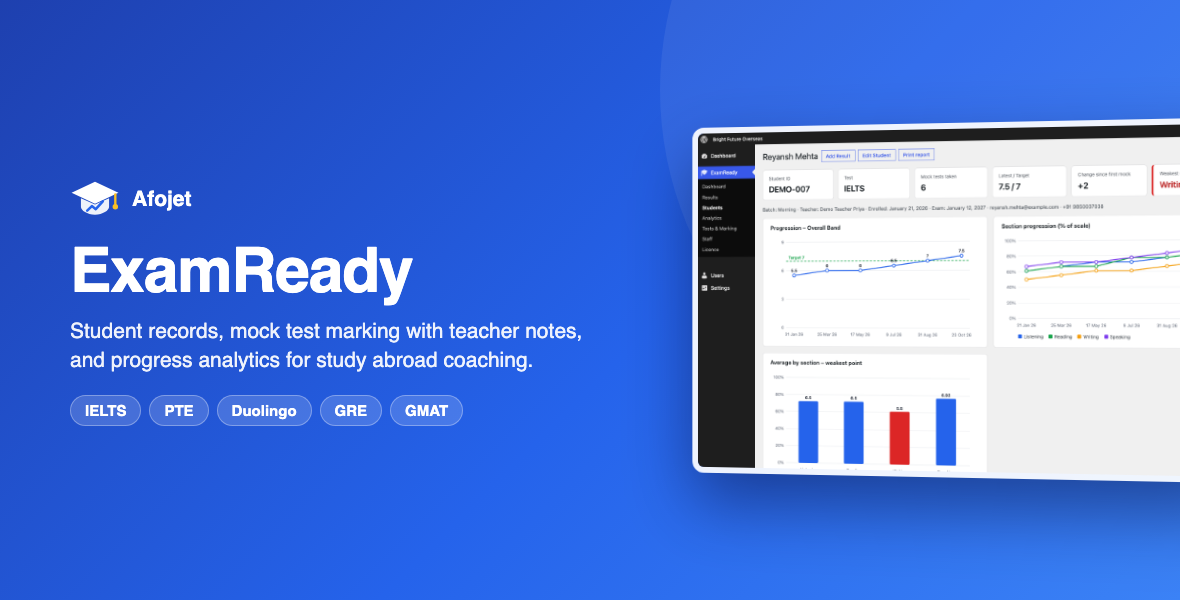
Afojet ExamReady is a WordPress plugin for study abroad consultants and coaching institutes. It does three things: it keeps student records, it lets teachers mark mock tests with notes for every section, and it shows each student's progress and weakest area before they book the real exam.
It runs inside your existing WordPress dashboard and works with any theme. It needs WordPress 6.2 or later and PHP 7.4 or later. There is no separate app to install and no outside service to sign up for.
One point is worth being clear about from the start. ExamReady is a management and tracking tool. Students do not sit the test inside the plugin. Your teachers run the mock test the way they already do, then enter the scores and their notes. The plugin handles everything after that: calculating the overall score, storing the feedback, and building the progress picture.
Marking systems for five exams, ready on activation
When you activate the plugin, five marking systems are already set up:
- IELTS – bands from 0 to 9, with half bands and the official rounding rule for the overall band.
- PTE Academic – scores from 10 to 90.
- Duolingo English Test – scores from 10 to 160, in steps of 5.
- GRE – Verbal and Quantitative giving a total from 260 to 340, with Analytical Writing recorded separately.
- GMAT Focus – a total score from 205 to 805.
Each test is made of sections, and each section has its own minimum, maximum and step. When a teacher enters a score, the plugin checks it against that range and step. An IELTS band of 6.3 or a Duolingo score of 123 is simply not accepted.
The teacher enters section scores, and the overall band or score is calculated for them. This removes the most common source of marking errors: working out the overall result by hand at the end of a long day.
Adding your own tests
You are not limited to the five built-in exams. Under ExamReady → Tests & Marking you can add, edit or delete tests. For a new test you choose the sections, the minimum, maximum and step for each one, and how the overall score is worked out: as an average of the sections, as a sum, or entered manually.
So if your institute also teaches TOEFL, a spoken English course, or an internal entrance test, you can set it up with its own scale and track it in the same way.
Student records in one place
Every student has a single record. The fields cover what a coaching institute actually needs to know:
- Student ID
- Email and WhatsApp number
- The test they are preparing for
- Target score
- Batch
- Assigned teacher
- Enrolment date
- Real exam date
- Status
Two of these fields do more work than they first appear to. The target score gives every graph and report something to measure against. The real exam date tells the teacher how much time is left to close the gap. Together they turn a list of names into a list of people with a goal and a deadline.
Students can be added, edited and deleted from the Students screen, and you can filter by test, batch and teacher.
Mock results with section-wise teacher notes
This is the heart of the plugin, and it is the part that spreadsheets handle worst.
When a teacher records a mock result, each section gets three things:
- The score.
- A "what went wrong" note.
- A "where to improve" note.
There is also an overall remark for the whole mock.
In practice, that means an IELTS mock result does not just say Writing 6.0. It says Writing 6.0, with a note that the student did not give a clear overview in Task 1, and a note telling them to practise writing overviews for five charts before the next mock. That feedback is saved with the result and stays there.
The benefit builds over time. By the fourth or fifth mock, a teacher can open a student's history and see every note they have written. If the same weakness has come up three times, it is obvious. If a problem was fixed after the second mock, that is visible too. A new teacher taking over a batch can read the full history instead of starting from zero.
A dashboard that shows the whole institute
The ExamReady dashboard is the screen an owner or head will open most often. It shows:
- The number of enrolments and active students
- Enrolments per month
- Enrolments per test
- How many mocks have been marked
- The weakest section for each test
The last item deserves attention. If the dashboard shows that Writing is the weakest section across your IELTS students, that is not one student's problem. It is a teaching signal. You may need an extra Writing class, a different approach, or more practice material for that section. A spreadsheet rarely surfaces this kind of pattern, because nobody has time to look for it.
Analytics: who is improving, and who needs attention
The Analytics screen goes deeper than the dashboard. It shows:
- Month-by-month progression of scores
- Section trends, so you can see which skills are rising and which are flat
- Weakest and strongest sections
- Students who need attention
- Top improvers
You can filter all of this by test, batch, teacher and date range.
This is useful in a few different ways. A head of department can compare batches. A supervisor can see how one teacher's students are progressing. An owner can check, before a counselling call with a parent, exactly where a student stands. And the list of students who need attention gives teachers a short, practical answer to the question "who should I focus on this week?"
A printable progress report for every student
Each student has a progress report that brings everything together on one page:
- A progress graph measured against the student's target score
- Graphs for each section
- The student's weakest point
- Every mock result, with the teacher's notes
The report can be printed or saved as a PDF from the browser.
This is the document to use in a parent meeting or a one-to-one review. Instead of saying "your Speaking needs work", the teacher can show the line on the graph, point to the gap between the current score and the target, and read out the specific notes from the last three mocks. It makes the conversation concrete, and it shows the student and the family that the institute is tracking their progress carefully.
Staff roles: the right access for each person
A coaching institute is rarely a one-person operation, and not everyone should see or change everything. ExamReady adds four staff roles, each with its own login:
- Teacher – adds and edits their own students and results. Teachers see only their own students.
- Supervisor – sees every student and result, and can delete them.
- Head – has supervisor rights, and also manages tests, marking systems, teachers and supervisors.
- Admin – can do everything in ExamReady, including managing heads and other admins.
Site administrators always have full access.
This structure suits an institute with more than one teacher or more than one branch. Teachers get a simple, focused view of their own students. Senior staff get the complete picture. And the marking systems, which should not be changed casually, are kept in the hands of the head and admin.
Staff are added under ExamReady → Staff.
A result page for students
Students should not have to phone the office to find out how they did. ExamReady includes a shortcode:
[afojet_examready_result]
Place it on any page of your website, and that page becomes a result checker. A student enters their Student ID together with their registered email or phone number, and sees their own results.
This does two things. It cuts down on routine "what was my score?" enquiries. It also gives students a reason to come back to your website regularly, which is good for any institute that wants its site to be more than a brochure.
CSV export: your data stays yours
Results, scores and teacher notes can be exported as a CSV file. You can export by test, by batch, or by date range.
This matters for a simple reason: you should never feel trapped by a tool. If you want to share figures with a partner, analyse them in a spreadsheet, or keep an offline copy, you can.
On the subject of data, the product page is direct about where it lives. Student data stays in your own WordPress database. The plugin contacts afojet.com only for licence checks, updates, and the optional demo data.
Try it first with one-click demo data
It is hard to judge a dashboard when it is empty. ExamReady solves this with a demo data option.
Click Import demo data and the plugin loads 24 fictional students, complete with mock results and teacher notes. The dashboard, analytics and progress reports fill up at once, so you can see what your own data will look like after a few months of use.
When you have finished exploring, click Remove demo data and it is cleared in one step, leaving your real records untouched.
How to set up ExamReady in five steps
Getting started follows the same path the product page describes:
- Install the plugin. In WordPress, go to Plugins → Add New → Upload Plugin, upload the zip file, and activate it.
- Activate your licence. Paste your afojet.com licence key under ExamReady → Licence.
- Add your teachers. Create staff accounts under ExamReady → Staff and give each person the right role.
- Add your students, or load the demo data first to see how everything works.
- Enter mock scores and notes after each mock test.
From there, the dashboard, analytics and reports build themselves as results come in.
Who is ExamReady for?
The plugin is designed for three kinds of user:
- Study abroad and immigration consultants who run IELTS, PTE or Duolingo coaching alongside their counselling work.
- Coaching institutes and tutors preparing students for GRE and GMAT.
- Institutes with branches, where several teachers share students and the owner needs one view across all of them.
If you teach a handful of students on your own, the student records, notes and progress reports will still save you time. If you run several batches with a team, the staff roles and analytics become the main reason to use it.
What ExamReady does not do
Being clear about limits is as useful as listing features.
- It is not an online exam engine. Students do not take the test inside the plugin. Teachers mark the mock and enter the scores.
- The scores are not official. They are mock scores entered by your teachers.
- It is not connected to the exam owners. IELTS, PTE Academic, Duolingo English Test, GRE and GMAT are trademarks of their respective owners. ExamReady is not affiliated with or endorsed by any of them.
Pricing and licence
At the time of writing, ExamReady is sold as a one-time payment with no monthly fees, in three plans:
- 1 site – ₹1,999
- 3 sites – ₹2,999, suited to institutes with branches
- 5 sites – ₹3,499, with priority support
Each plan includes updates and support for one year. The product page also lists a 7-day money-back guarantee. After purchase you get an instant download, and your licence key is sent by email. Once the licence is active, updates arrive in your WordPress dashboard like any other plugin update.
Prices can change, so check the product page for the current figures.
Frequently asked questions
Can I add a test that is not built in, such as TOEFL?
Yes. Go to ExamReady → Tests & Marking and create a new test with your own sections, minimum, maximum, step, and overall-score method.
Are the scores in ExamReady official results?
No. They are mock scores entered by your teachers. They are not connected to or endorsed by the organisations that own the exams.
Can students see their own results?
Yes. Add the [afojet_examready_result] shortcode to a page. Students check their results using their Student ID and their registered email or phone number.
Can I try the plugin with sample data?
Yes. "Import demo data" loads 24 fictional students with results and notes. "Remove demo data" clears them in one click.
What happens when my licence expires?
ExamReady keeps working and your data stays where it is. You need to renew only to receive new versions and support.
Is student data sent to any outside service?
No. Student data stays in your WordPress database. The plugin contacts afojet.com only for licence checks, updates and the optional demo data.
Does it work with my theme?
Yes. ExamReady works with any WordPress theme. It needs WordPress 6.2 or later and PHP 7.4 or later.
Know who is ready before they book the exam
A real exam attempt costs your student money, time and confidence. The whole point of a mock test is to find the weak spot while there is still time to fix it. That only works if the scores, the feedback and the trend are all in one place, where the teacher, the head and the student can see them.
ExamReady puts them there. Correct marking for five major exams, notes on every section of every mock, a clear progress graph against each student's target, and a dashboard that shows where a whole batch is struggling.
If you are ready to move on from spreadsheets, get Afojet ExamReady for your coaching institute, load the demo data, and see what your students' progress looks like when it is all on one screen.
Keep reading
View all → WooCommerce
How to Reduce Fake COD Orders in WooCommerce with Free OTP Verification
 Hosting
VPS Server Reboot Issue: Root Cause & Permanent Fix
Unexpected server reboots and websites becoming inaccessible are among the most frustrating problems for VPS users. Many VPS environments experience random downtime, Apache freezes, or sudden performance issues without clear error messages.
 WooCommerce
Top 5 WooCommerce Security Plugins You Need in 2025
WooCommerce powers millions of online stores, making it one of the most popular eCommerce platforms in the world. But popularity comes with a price: hackers, spammers, and bots constantly target WooCommerce sites. From brute-force login attempts to fake registrations and malware…
Comments
No comments yet. Be the first!
Leave a comment